
The platform
Execution Settings
Everything a test needs in order to actually run: which browser, against which environment, with which values, on which machine.
Five tabs#
- Browser & Resolution: how the browser is launched for this project.
- Runners: the machines allowed to execute this project's tests.
- Environments: the targets you run against: staging, production, local.
- Organization Variables: values shared by every project.
- Project Variables: values for the active project only.
Note
Browser & Resolution#
Sets how the browser is launched for this project's tests. Both the window and the recorded video use this size, so a low resolution here produces recordings you cannot read.
| Parameter | Type | Description |
|---|---|---|
| Browser | chrome | msedge | chromiumdefault chrome | chrome and msedge drive the real browser installed on the runner machine. chromium uses the build that ships with Playwright, which is more reproducible but not what your users have. |
| Width | numberdefault 1920 | Viewport and recording width. |
| Height | numberdefault 1080 | Viewport and recording height. |
Tip
Environments#
An environment is a named target: Staging, Production, Local. On its own it holds almost nothing; what makes it useful is that variables can be given a different value per environment. The same test then runs against staging or production without a single edit.
Every execution picks exactly one environment. It is a required choice, so there is no default that would let you accidentally point a destructive test at production.
Variables#
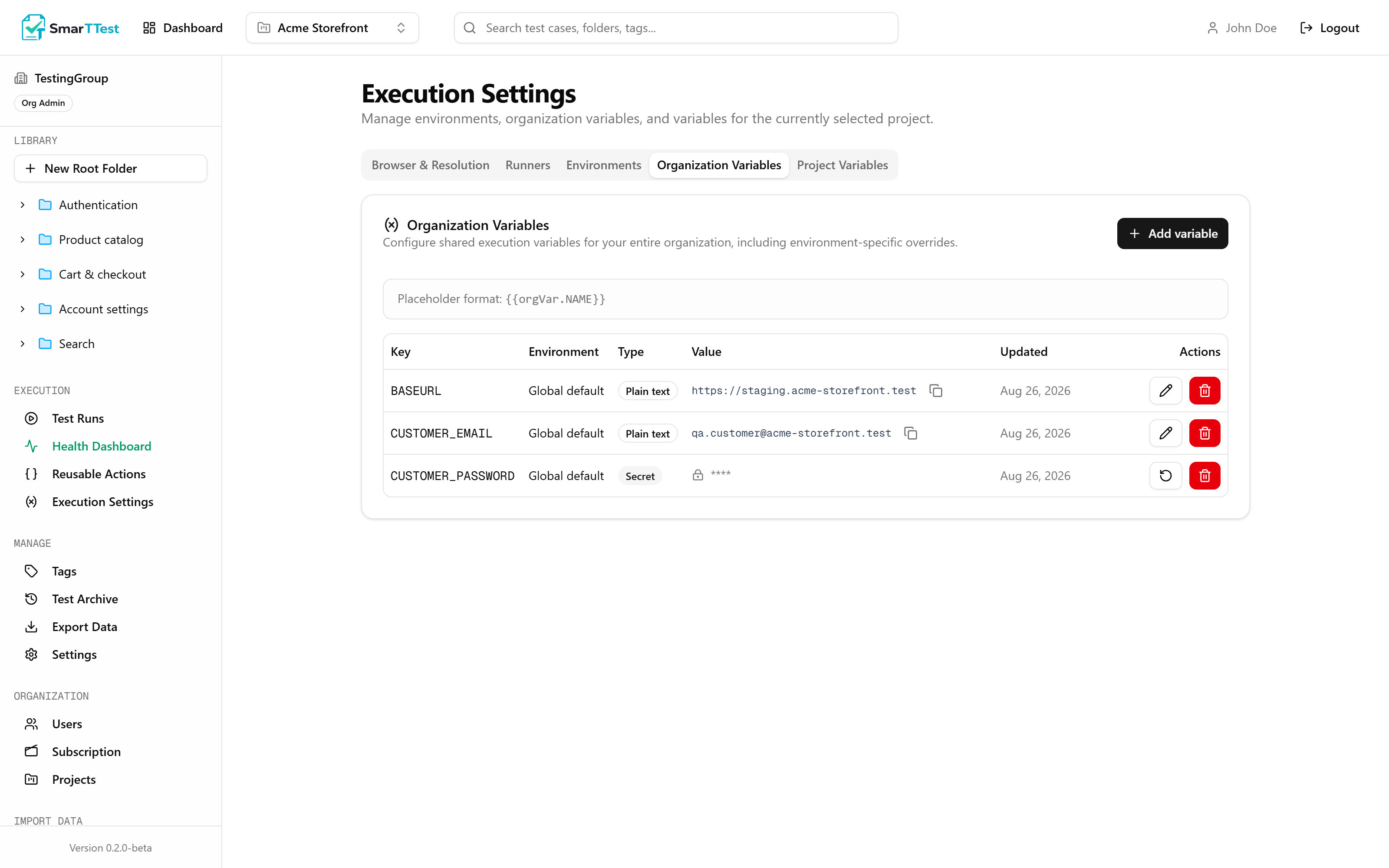
Variables keep URLs, accounts, and credentials out of the tests themselves. In an automation plan you reference one by namespace and key:
{
  "command": "playwright_browser_navigate",
  "input": { "url": "{{orgVar.BASE_URL}}/checkout" }
}
Three namespaces
The namespace is part of the reference, so which variable you mean is always explicit. There is no invisible cascade to reason about.
| Parameter | Type | Description |
|---|---|---|
| {{orgVar.KEY}} | organization | Shared by every project. Where anything used in more than one place belongs. |
| {{projectVar.KEY}} | project | Only for the active project. |
| {{testVar.KEY}} | test | Attached to a single test. For values only that test cares about. |
Environment overrides
Within a namespace, a key can have a base value plus a value for a specific environment. At execution time the environment-specific value wins if there is one; otherwise the base value is used.
So orgVar.BASE_URL might be https://staging.acme.com for the Staging environment and https://acme.com for Production, while the test just says {{orgVar.BASE_URL}}.
Secrets
Marking a variable secret encrypts the value at rest and stops it ever being displayed again. The interface shows a mask, and the MCP returns only whether a value exists, never the value itself. It is decrypted at execution time and handed to the runner.
Never put a credential in a test
Runners#
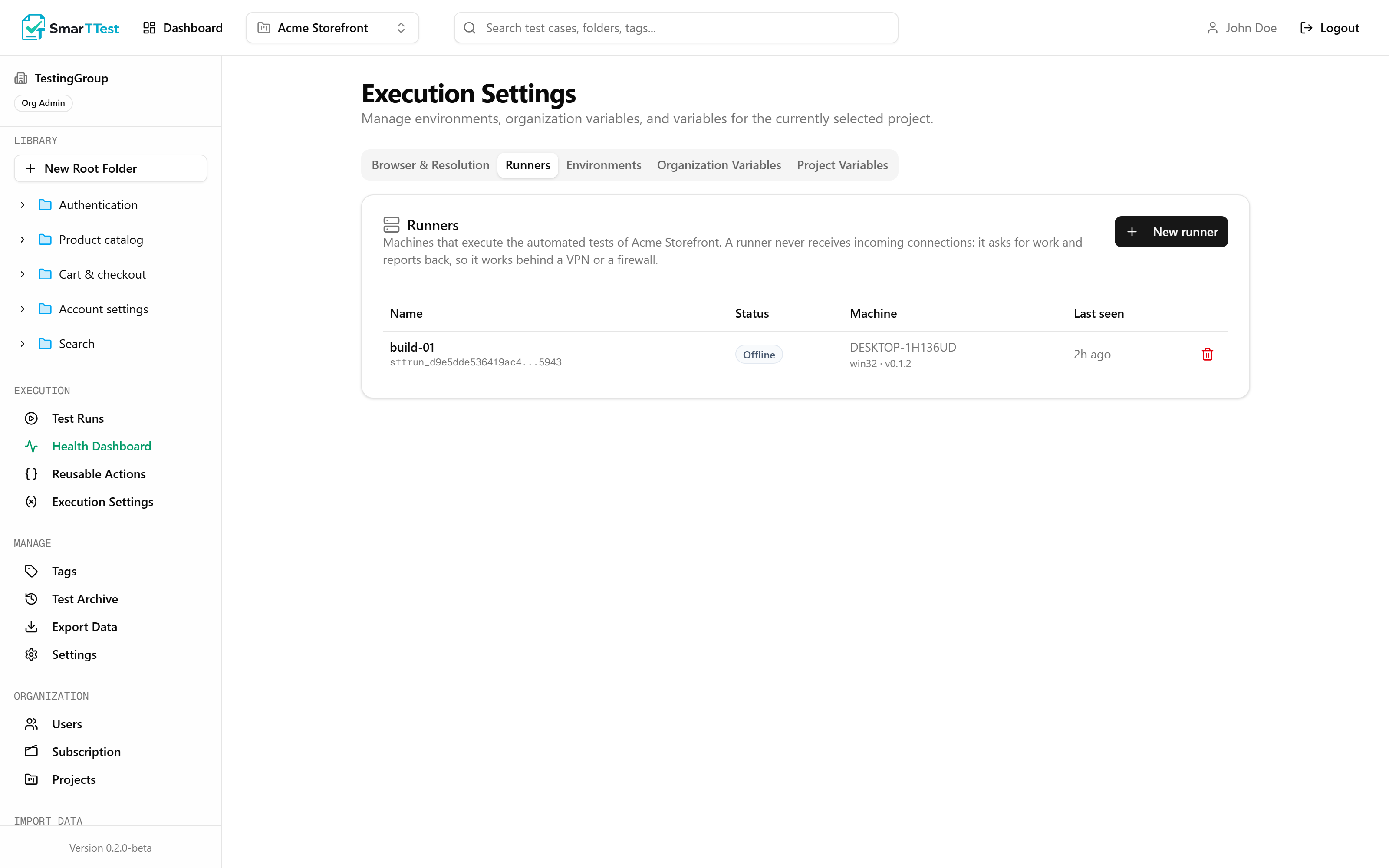
A runner is a small program you install on a machine you control. That machine is where the browser opens and the automated tests actually execute; the runner reports the results back to SmarTTest.
Nothing connects into your network
The runner polls SmarTTest for work: every five seconds when idle, every three while executing. Nothing ever opens a connection towards the runner. That is what lets it sit behind a VPN, a corporate firewall, or on a laptop with no public address, with no networking changes at all.
Status
| Parameter | Type | Description |
|---|---|---|
| Online | status | Seen within the last 60 seconds. Ready to pick up work. |
| Offline | status | Not seen for over 60 seconds, which is more than ten missed polls, so this is a stopped runner rather than a network hiccup. Jobs sent to it wait in the queue until it returns. |
| Never connected | status | Created in the app, but the token was never installed on a machine. |
| Revoked | status | Its token no longer works. Permanent. |
Setting one up
- 1
Create it here
Give it a name that identifies the machine. You get a token, shown exactly once. - 2
Install it on that machine
terminalnpx @smarttest/runner login --token <your-token> npx @smarttest/runner install npx @smarttest/runner start
Full command reference in SmarTT Runner CLI.
What a runner token can do
A runner token is deliberately narrow. It can read the tests it has been asked to execute and write back their results, and nothing else. It cannot create or edit tests, read your variables outside an execution it was given, or reach another project.
The token is shown once
Revoking
Revoking stops the token working immediately and cancels anything queued for that runner. It cannot be undone. If the runner is online at the time it may be executing tests right now, and that work is cancelled. The app warns you before you confirm.
Through the MCP#
get_execution_settings, list_environments, get_org_variables, get_project_variables, get_test_variables, and list_runners. Note that the variable tools report which keys exist, never secret values. See the tool reference.