
The platform
Tests
A test is one document that both a person and a machine can execute. The written steps and the automation plan live side by side, so they cannot drift apart.
Anatomy of a test#
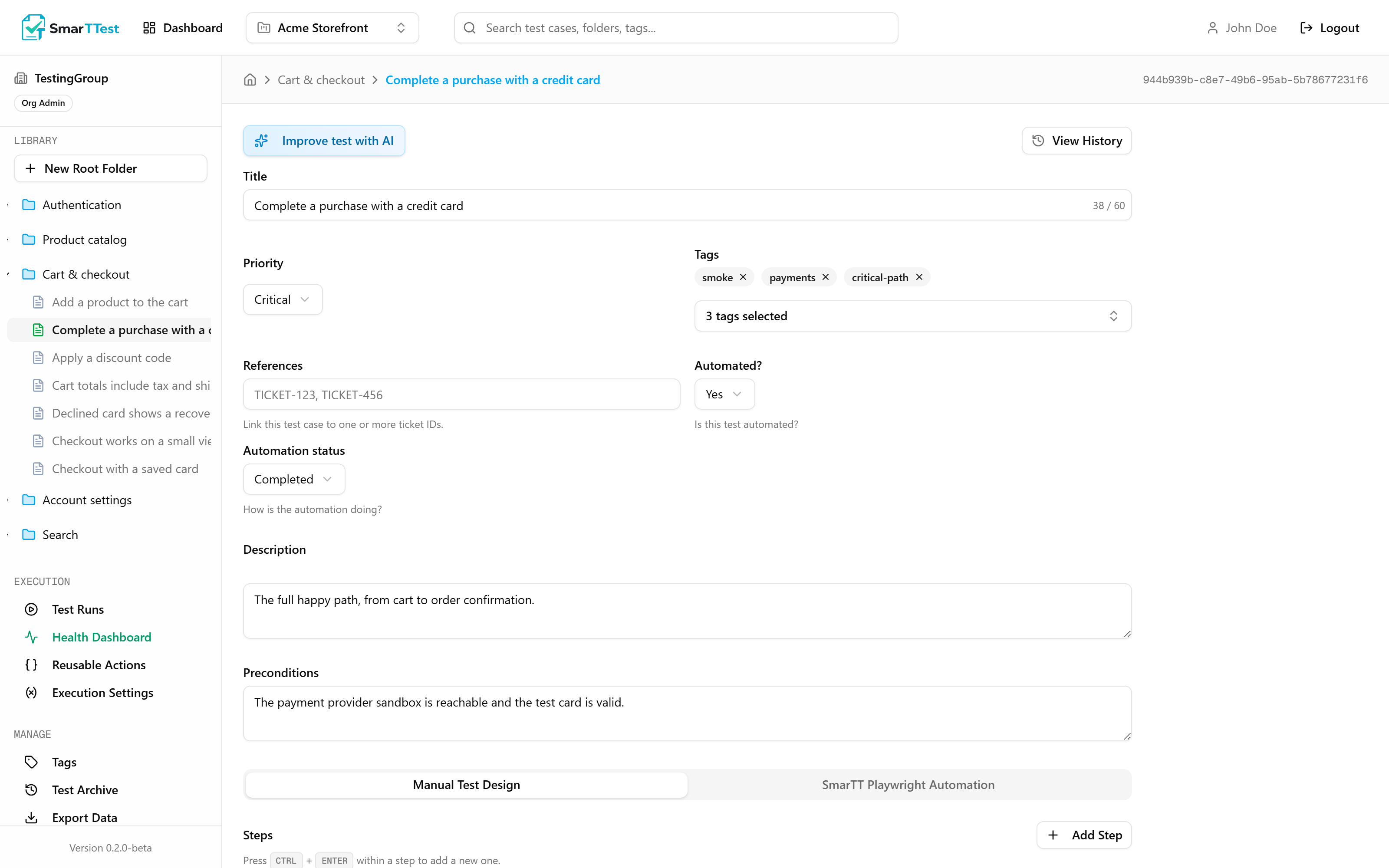
Every test has a written half and, optionally, an executable half. The written half is what a person reads during a manual pass and what a reviewer checks. The executable half is an ordered list of browser commands. Both describe the same behaviour.
Fields#
These are the fields the test editor gives you, in the order they appear.
| Parameter | Type | Description |
|---|---|---|
| Titlereq | text | What the test verifies, in one line. |
| Priorityreq | Low | Medium | High | Critical | Used for filtering, and for deciding what belongs in a smoke run. |
| Tags | multi-select | Cross-cutting labels. See Tags. |
| References | text | Ticket ids or links. What explains why this test exists. |
| Automated? | No | Yes | Impossible | Discardeddefault No | Whether this test has automation. See below. |
| Automation status | Completed | In Progress | Needs Attention | Broken | How the automation is holding up. Only appears when Automated? is Yes. |
| Why can't it be automated? / Discard reason | text | Only appears for Impossible and Discarded. Maximum 500 characters. |
| Description | text | The context a reader needs before the steps make sense. |
| Preconditions | text | The state the system must be in before step 1. Setup that has to actually run belongs in a reusable action instead. |
| Stepsreq | ordered list | Each step has an action, its own expected result, and optionally the automation commands that perform it. |
Note
The four automation states#
"Automated: yes or no" loses the most useful information, which is why a test that could be automated still isn't. SmarTTest keeps four states instead:
Yes: it has an automation plan. Pair it with anautomationStatusso you can tell finished automation from work in progress and from automation that is currently broken.No: not automated yet. The default, and the honest state for a backlog.Impossible: cannot be automated at all: a physical device, a third-party flow you do not control, a visual judgement. Requires a reason.Discarded: could be automated, but the team decided it isn't worth it. Requires a reason.
Why the reason is mandatory
Impossible and Discarded are the two states that get questioned in a review a year later. Forcing a reason at the moment of the decision is the only time anyone actually remembers it. It also makes the Health Dashboard honest: unautomated tests with a justification are not the same problem as unautomated tests without one.Heads up
automatedRejectReason is not a description of the automation. Putting a summary of the script there when the test is automated is rejected. The field only exists for the two negative states.The automation plan#
Automation is stored as an ordered list of actions. Each action has a command, an input object, and optionally a saveAs that captures its result into a runtime variable.
{
  "command": "playwright_browser_click",
  "input": { "role": "button", "name": "Sign in" }
}
Available commands
Grouped by how often you will reach for them.
| Parameter | Type | Description |
|---|---|---|
| playwright_browser_navigate | common | Open a URL. Usually the first action of a test. |
| playwright_browser_click | common | Click an element. |
| playwright_browser_type | common | Type into a field. |
| playwright_browser_fill_form | common | Fill several fields in one action, instead of a click-and-type pair for each. |
| playwright_browser_select_option | common | Choose from a dropdown. |
| playwright_browser_press_key | common | Press a key. Only real key names are accepted, so a typo is rejected on save. |
| playwright_browser_hover | common | Hover, to reveal menus or tooltips. |
| playwright_browser_wait_for_element | common | Wait until an element is there. The correct alternative to a fixed sleep. |
| playwright_browser_wait_for | common | Wait for text to appear or disappear, or for a fixed time. |
| playwright_browser_take_screenshot | common | Capture the page, or a single element. The image is attached to the run result. |
| smartt_read_element | capture | Read a value off the page into a runtime variable. Requires saveAs. |
| smartt_assert | assertion | Compare a captured value against an expectation. See below. |
| smartt_run_reusable_action | common | Run a shared block of steps here. Editing the block updates every test that uses it. |
| playwright_browser_navigate_back | less common | Browser back. |
| playwright_browser_drag | less common | Drag an element. |
| playwright_browser_drop | less common | Drop onto a target. |
| playwright_browser_file_upload | less common | Attach a file to an input. |
| playwright_browser_handle_dialog | less common | Accept or dismiss a native alert / confirm / prompt. |
| playwright_browser_resize | less common | Resize the window mid-test. |
| playwright_browser_tabs | less common | Open, switch, or close tabs. |
| playwright_browser_get_url | capture | Current URL into a variable. Requires saveAs. |
| playwright_browser_get_title | capture | Page title into a variable. Requires saveAs. |
| playwright_browser_console_messages | capture | Console output into a variable, useful to assert no errors were logged. |
| playwright_browser_network_requests | capture | All network activity into a variable. |
| playwright_browser_network_request | capture | One matched request into a variable, to assert on its status or body. |
| playwright_browser_close | advanced | Close the browser explicitly. |
Runtime variables
Six commands return a value, and all six must capture it. That is what saveAs is for. A command that reads something and throws the result away is almost always a mistake, so it is rejected rather than silently accepted.
Once captured, refer to the value anywhere as {{runtime.NAME}}.
[
  {
    "command": "smartt_read_element",
    "input": { "role": "heading", "name": "Order confirmed" },
    "saveAs": "confirmation"
  },
  {
    "command": "smartt_assert",
    "input": {
      "actual": "{{runtime.confirmation}}",
      "operator": "contains",
      "expected": "Order confirmed"
    }
  }
]
The most common automation mistake
smartt_assert requires actual to hold a {{runtime.NAME}} reference, not a literal. Writing "actual": "Order confirmed" compares a constant to a constant, which proves nothing about the page, so the Quality Engine flags it. Capture the real value first, then assert on the capture.Assertion operators
smartt_assert takes actual, an operator, and usually an expected:
- Comparison:
equals,notEquals,contains,notContains,matches(regular expression). - Numeric:
greaterThan,lessThan,greaterOrEqual,lessOrEqual. - No
expectedneeded:isTrue,isFalse,isEmpty,isNotEmpty.
How to point at an element
Most commands need to identify an element. The order below is not stylistic. It is how resistant each one is to a redesign that does not change behaviour:
- Role and name:
{ "role": "button", "name": "Sign in" }. Matches what a user sees, and survives markup changes. - Label: for form fields, the visible label.
- Test id: stable, but only if your app actually maintains them.
- CSS selector: the last resort. It breaks on refactors that changed nothing a user would notice, and that is exactly what makes a suite feel unreliable.
Names match by substring, so a link named Free also matches "Start for Free". When more than one element matches, the step fails instead of picking one at random, which is the right call: a test that silently chose would pass or fail depending on render order.
exact: truerequires the whole name to match. This is the fix you want most of the time.nth: 0picks one when several elements really are identical, like a row in a list.
Tip
validate_automation tells you how many elements a locator matches before you run anything, and shows the text of each one. See the tool reference.The Quality Engine#
Automation can be syntactically valid and still be worthless: no assertions, fixed sleeps, a password typed in as a literal. The Quality Engine reads a test's automation and returns a score out of 100 with specific findings. It is entirely deterministic: no AI, no cost, same input gives the same output.
The same screen, two tests
The scorecard sits above the automation plan. These two tests were written against the same application on the same afternoon.
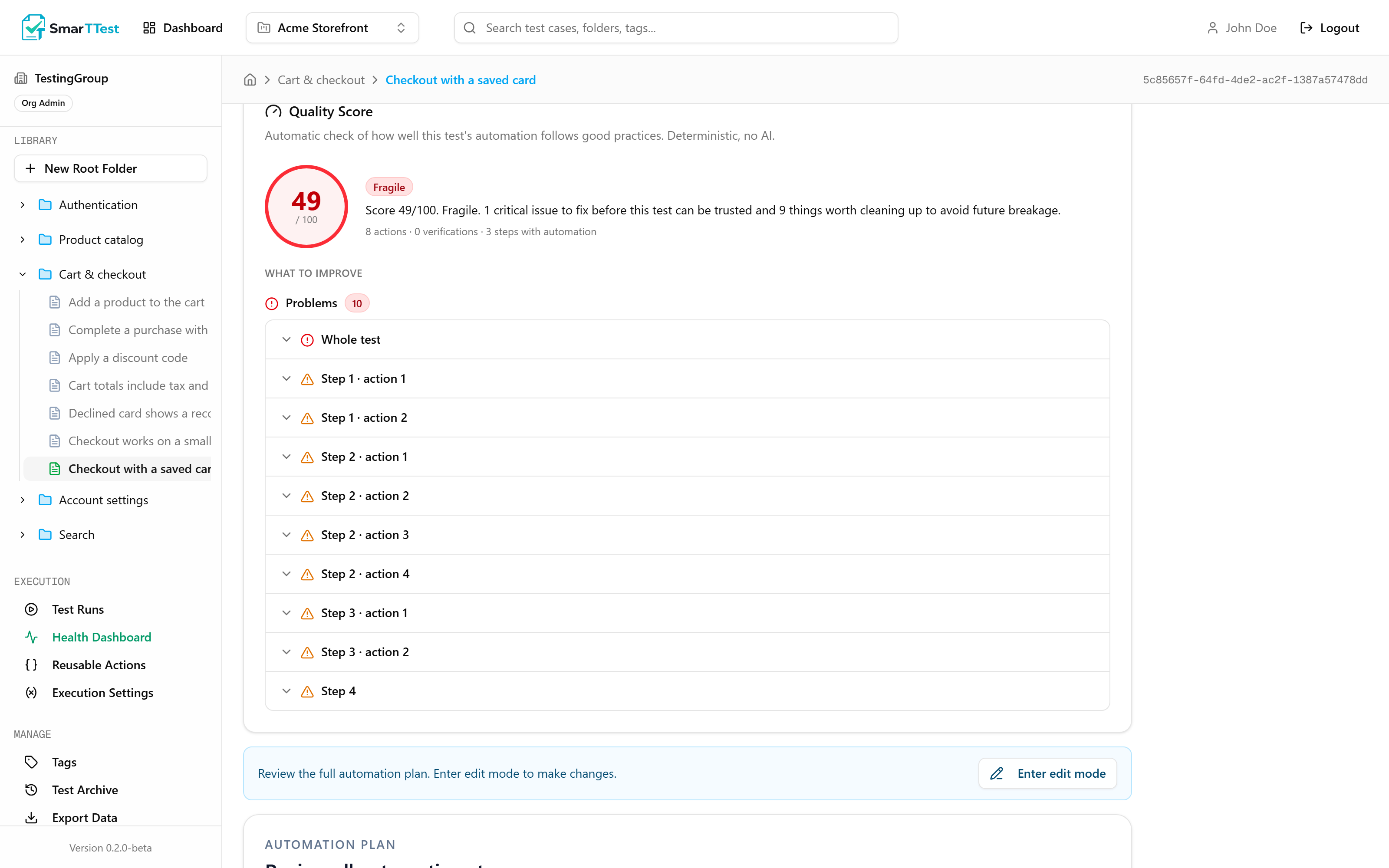
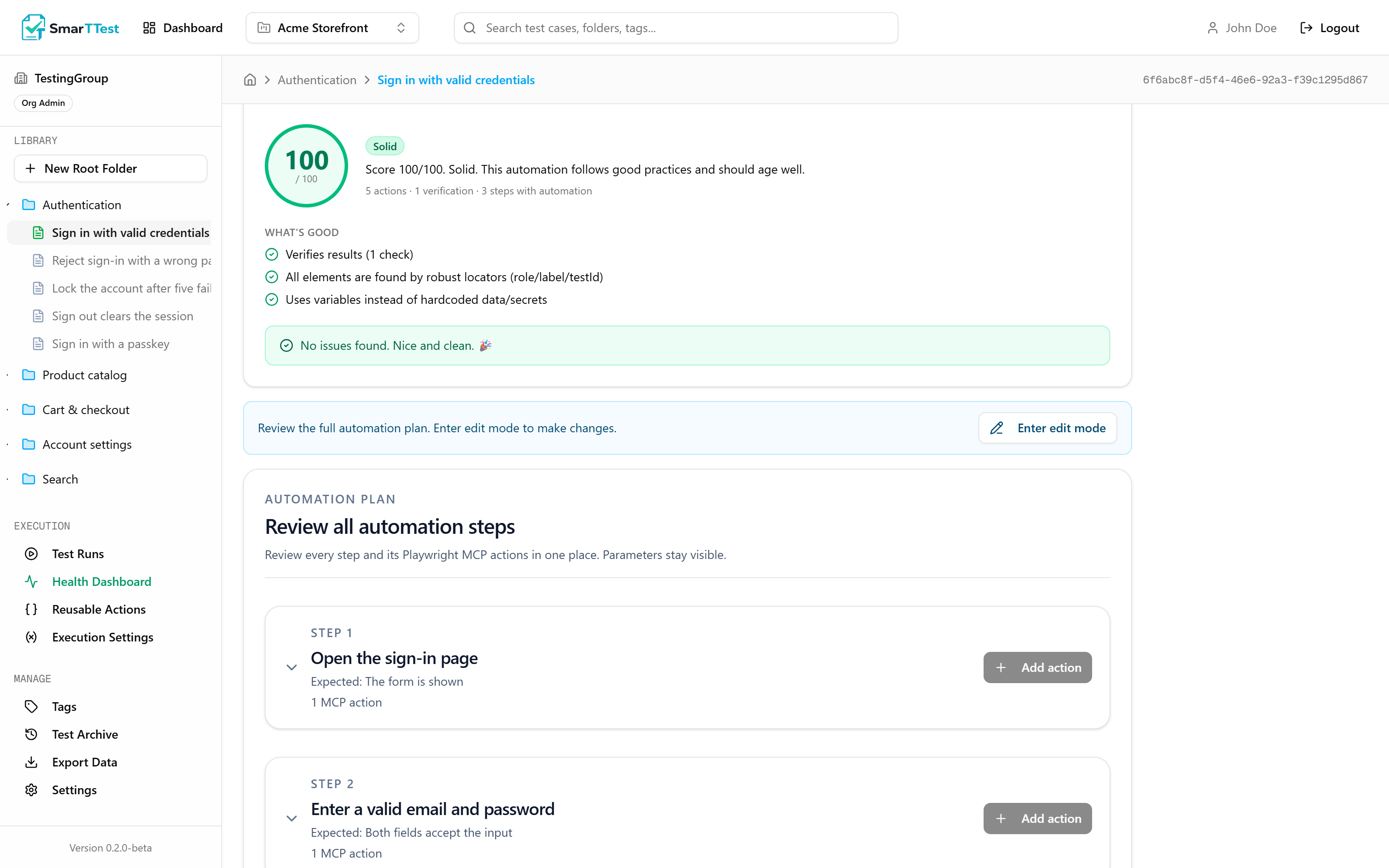
Nothing about the first test is unusual. It was written quickly to move a coverage number, it runs, and it goes green. That is exactly why a deterministic score is worth having: nobody would have caught this by reading it.
It checks eight things:
- Verifications: does the test actually assert anything, or does it just click around?
- Locators: how brittle the element references are.
- Hard waits: fixed sleeps, which are the main source of flakiness.
- Text waits: waiting on text that will not reliably appear.
- Step actions: whether the automation matches the written steps.
- Hardcoded data: credentials, URLs, and other values that belong in a variable.
- Runtime variables: values captured but never used, or asserted without being captured.
- Empty steps: written steps with no automation behind them.
It catches flakiness before you have any
A flaky test is usually not born flaky. It is written with a pattern that will eventually flap, and the flapping only shows up weeks later on a slower day. Much of what the engine flags is exactly that pattern, caught while the automation is still on screen:
- A fixed sleep instead of a wait. Waiting three seconds passes on your machine and fails on a loaded CI box. The fix is waiting for the element, and the finding says so.
- A CSS selector where a role and name would do. It survives until somebody reorders a div, and then it fails for a reason that has nothing to do with the product.
- Waiting on text that is not guaranteed to appear. A wait that sometimes has nothing to wait for is a timeout waiting to happen.
- A value read and never asserted. The test looks like it checks something and does not, so it passes through real breakages and fails on unrelated noise.
Note
Every finding comes with a prompt
Each finding has a copy fix prompt action. It generates an instruction written for that specific finding, on that specific step, ready to paste into a terminal agent such as Claude Code or Cursor. The prompts are built per rule rather than generically, because "fix this test" makes an agent guess, and a guess is how a brittle locator becomes a differently brittle locator.
Tip
analyze_test_quality on its own work and fixes what comes back. That loop of write, score, fix is what makes the difference between automation that runs and automation you can trust.A side effect worth having: accessibility
The engine pushes you towards locating elements by their role and accessible name, because that is what survives a redesign. That happens to be the definition of an accessible interface too: a button a screen reader can announce is a button your test can find by name.
Plenty of legacy applications have neither. When a test cannot be written against roles and names because the page exposes none, that is not a testing problem to work around with a CSS selector. It is an accessibility gap the automation just found. Teams automating older applications with SmarTTest tend to end up adding labels and roles to the product itself, which makes the tests stable and the application usable by more people at the same time.
Flakiness tracking#
As a test accumulates results, SmarTTest tracks whether it produces consistent outcomes. A test is STABLE, FLAKY, or a REGRESSION, with a score behind it. Flaky tests surface on the Health Dashboard, because a suite where failures are routinely ignored is worse than no suite at all.
Archiving#
Tests are never hard-deleted. Archiving is a soft delete: the test disappears from the tree but keeps its history and its past run results. See Test Archive.
Through the MCP#
list_tests, get_test, create_test, update_test, archive_test, restore_test, and analyze_test_quality. Full parameters in the tool reference.