
The platform
Test Runs
A run is the record of executing a set of tests at a moment in time. Tests change; a run does not. That is what makes it worth keeping.
What a run is#
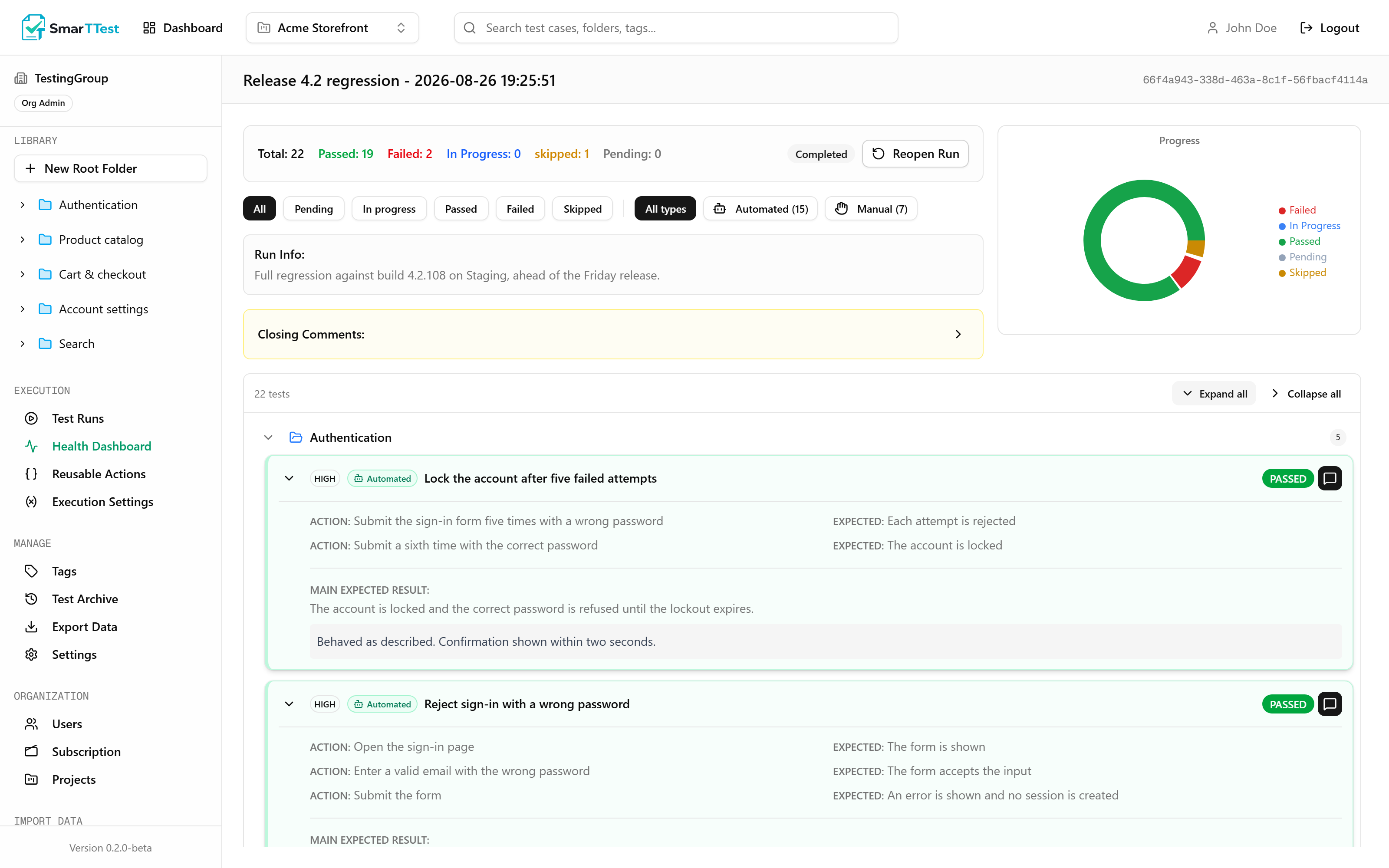
When you create a run, SmarTTest takes the tests you scoped it to and creates one result slot for each. Every slot starts as PENDING and ends up with a status and a comment. The run stays open until you close it deliberately.
Creating a run#
- 1
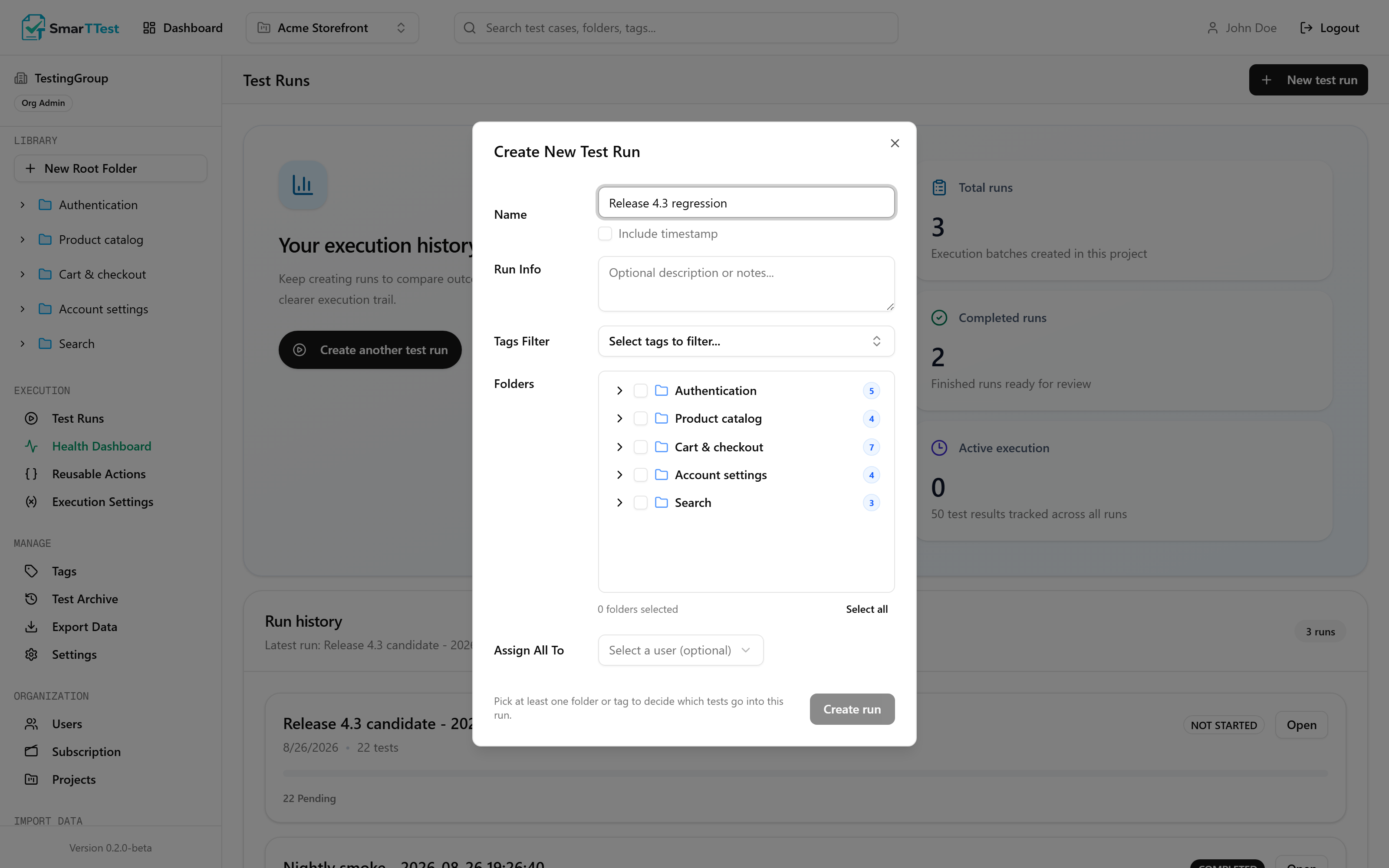
Name it after the thing being verified
"Release 4.2 regression", not "Run 17". Include timestamp adds a date and time to the name, which is worth turning on when you run the same suite repeatedly and off when the name already identifies the moment. - 2
Scope it
By folders, by tags, or both. You have to pick something: a run with no scope used to quietly include every test in the project, which is rarely what anyone means. Select all next to the folder tree takes the whole project when that genuinely is what you want. - 3
Add an opening comment
What this run is for, what build it targets. It is the first thing a reader sees later.
Result statuses#
| Parameter | Type | Description |
|---|---|---|
| PENDING | status | Nobody has executed this test yet. The starting state. |
| IN_PROGRESS | status | Somebody has started, or a runner has picked it up and is executing it right now. |
| PASSED | status | Behaved as the expected result describes. |
| FAILED | status | Did not. The comment is where the detail goes. |
| SKIPPED | status | Deliberately not executed: out of scope for this build, blocked by an environment problem, or superseded. |
Write a comment, especially on failures
Executing automated tests with SmarTT Execute#
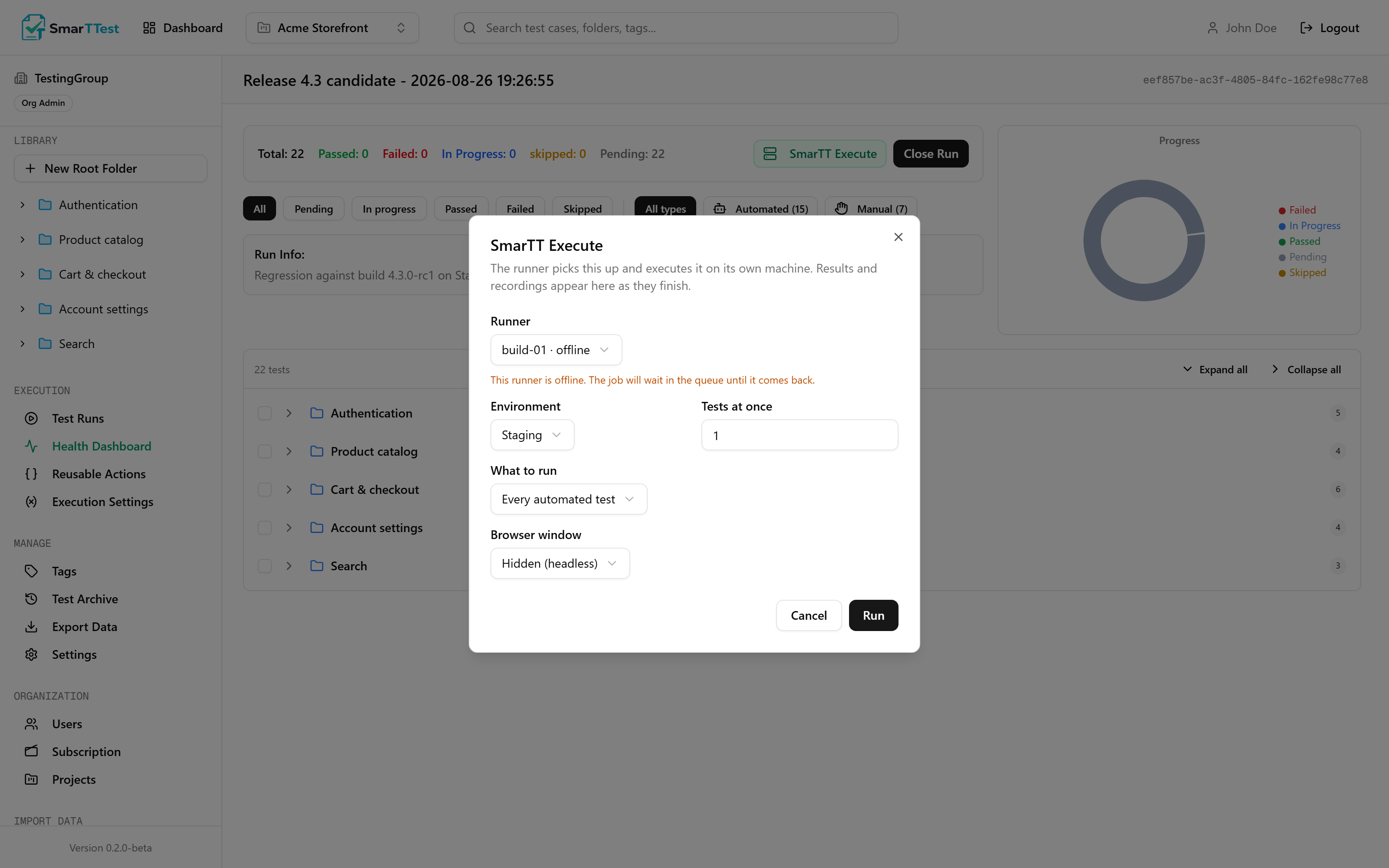
Manual tests you work through yourself, marking each result. For automated tests, press SmarTT Execute in the run header and hand the work to a runner.
What the dialog asks for
| Parameter | Type | Description |
|---|---|---|
| Runner | select | The machine that executes. An offline runner can still be chosen; the job waits in the queue until it comes back. |
| Environment | select | Which set of variables the tests get: which URL, which credentials. |
| Tests at once | 1 – 8default 1 | Raise it only when the tests are independent. Tests that share a login or a fixture will collide with each other. |
| What to run | all | pending | faileddefault all | Re-running only the failures is the usual second pass, once you have fixed whatever broke. |
| Browser window | hidden | visibledefault hidden | Whether the browser is visible on the runner machine. Hidden is faster; visible is useful when you are watching a failure happen. |
Manual tests are skipped, not failed
automated: Yes. The rest keep their current status and stay yours to fill in.Heads up
Recordings and evidence#
Every automated result carries a video of the execution and how long it took. A failure you can watch is a failure you can diagnose without reproducing it locally first.
On manual results, the comment field is a rich text editor: paste screenshots or drop a screen recording straight into it.
Closing a run#
Closing freezes the run. You can add a final comment, though nothing forces you to. Either way SmarTTest reads through the results and writes a SmarTT Summary: what passed, what failed, what the failures had in common, and whether the run is a reasonable basis for shipping. That summary is appended to the closing comment, so the outcome is readable without opening every row.
- A closed run cannot receive new results, and cannot be sent to a runner.
- It still appears in exports and feeds the Health Dashboard.
- Reopen it if you genuinely need to add something.
Close runs promptly
Through the MCP#
list_runs, get_run, create_run, update_run_test_result, and complete_run. To execute, an agent calls run_on_runner and polls get_runner_job. See the tool reference.